Came across this one today; bought 4 new Dell computers and was setting them up. Ok first thing I have to do is copy a directory over from the old computer to thenew machine, half way through the copy and I get cannot copy access is denied.
I try everything, I disable file sharing, turn off firewall and a few other things. I notice that at every reboot Norton asks me to sign up for their trial. Being a new computer and I won't be using it, I just click on "remind me later". Well, could it possibly be Norton stopping this file (I notice it is a .exe file); this could be possible but why since I have told it I don't want to install it.
So I click to uninstall Norton trial offer (which I never accepted) and now everything works. I guess I don't know why Dell puts this on yet it indicates that it is not installed and you have the option to install it when you want. I guess this is incorrect.
Wednesday, January 13, 2010

Wednesday, December 16, 2009
Simple way to prevent printing of web page
Basically, there is no way to prevent a user who really wants to print a web page out, it is a simple as them hitting their "Print Screen" button, etc...
But for intranet purposes, letting your users know that some pages are not to be printed, you can add the following code to the head section:
{{Code is changed slightly by removing "<" in front of tags for display here:}}
This will only print out a blank page when the user goes to "file"--> "print" (print conventionally)
A user can still print out by unconventional methods but, by doing so, is understanding the company does not want it printed, and he is behaving improperly.
But for intranet purposes, letting your users know that some pages are not to be printed, you can add the following code to the head section:
{{Code is changed slightly by removing "<" in front of tags for display here:}}
head>
style type="text/css" media="print">
body { visibility: hidden; display: none }
/style>
/head>
This will only print out a blank page when the user goes to "file"--> "print" (print conventionally)
A user can still print out by unconventional methods but, by doing so, is understanding the company does not want it printed, and he is behaving improperly.
Enable thumbnail view and photo editor in Windows Server 2008
When trying to use Server 2008 more like a desktop, you will find some options need to be enabled so that it behaves more like a workstation.
Two things that come to mind are thumnail view which is disabled and Microsoft Windows Photo and Fax viewer (so that you can view the pictures with something other than "Paint")
For Thumbnails:
Click on "start" --> "run", then type in "SystemPropertiesPerformance" Check off "show thumbnails instead of icons and then "OK"
For "Photo and Fax viewer", you need to enable the "Desktop Experience" in the Server Manager, go to "Features" --> "Add Features" and choose "Desktop Experience". the Windows Photo and Fax viewer will then be enabled.
Two things that come to mind are thumnail view which is disabled and Microsoft Windows Photo and Fax viewer (so that you can view the pictures with something other than "Paint")
For Thumbnails:
Click on "start" --> "run", then type in "SystemPropertiesPerformance" Check off "show thumbnails instead of icons and then "OK"
For "Photo and Fax viewer", you need to enable the "Desktop Experience" in the Server Manager, go to "Features" --> "Add Features" and choose "Desktop Experience". the Windows Photo and Fax viewer will then be enabled.
Wednesday, December 9, 2009
Sharing HP Deskjet 5600 series (HPA) on Windows 7
Just finished sharing my HP 5850 printer on my home network in Windows 7 with my Windows XP machine. Sounds easy yes?. Well it took me a while to do this, here is what I went through.
USB connection to the 5850 from Windows 7 machine, whoops, no real driver for this so you need the 5600 Series (HPA) driver for it to function. Ok now sharing it out, well you have to enable sharing for people who do not have an account on that machine; (hey, this is a home network) another step. now to add additional drivers (like, for XP but nope, can't do that cause it asks for .inf file and I can't find it 0k didn't really investigate if it was there, but i am fairly sure the lay-person won't find it)
Now, going to the XP machine I point to the windows 7 machine and low and behold it says "driver is not installed on that machine, so browse to it on your own machine", but then it is nowhere to be found on the machine (or I couldn't find the driver as I checked every $win inf$ file there was)...and also guess what, you won't find that HPA driver anywhere at HP.com either.
So... I installed a 5800 series printer on my xp machine, pointed it to the local port and said just install the driver even though the it cannot find the printer. Then I went to the newly created printer and changed the port; created new port and called it \\(windows7machine)\(sharedprintername)
Now I can print to the shared printer on the Windows 7 machine.
Anybody got a better way?
USB connection to the 5850 from Windows 7 machine, whoops, no real driver for this so you need the 5600 Series (HPA) driver for it to function. Ok now sharing it out, well you have to enable sharing for people who do not have an account on that machine; (hey, this is a home network) another step. now to add additional drivers (like, for XP but nope, can't do that cause it asks for .inf file and I can't find it 0k didn't really investigate if it was there, but i am fairly sure the lay-person won't find it)
Now, going to the XP machine I point to the windows 7 machine and low and behold it says "driver is not installed on that machine, so browse to it on your own machine", but then it is nowhere to be found on the machine (or I couldn't find the driver as I checked every $win inf$ file there was)...and also guess what, you won't find that HPA driver anywhere at HP.com either.
So... I installed a 5800 series printer on my xp machine, pointed it to the local port and said just install the driver even though the it cannot find the printer. Then I went to the newly created printer and changed the port; created new port and called it \\(windows7machine)\(sharedprintername)
Now I can print to the shared printer on the Windows 7 machine.
Anybody got a better way?
Wednesday, December 2, 2009
Remove User Account Control warning from Windows Vista
Vista allows you to turn off the UAC via -->Control Panel -->User Accounts -->"Turn off User Account Control" but then creates an annoying "warning User Account Control Turned off" pop-up balloon which you then can't shut off. I'd like to someday create a poll on which is more annoying....the User account control or the warning that it is turned off.
Anyway, turn it off in the registry by HKey_LOCAL_MACHINE\SOFTWARE\Microsoft\SecurityCenter
Add this value:
Data Type: DWORD
ValueName: UACDisableNotify
Value: 1 (dec)
Restart
Anyway, turn it off in the registry by HKey_LOCAL_MACHINE\SOFTWARE\Microsoft\SecurityCenter
Add this value:
Data Type: DWORD
ValueName: UACDisableNotify
Value: 1 (dec)
Restart
Wednesday, November 18, 2009
install command line ssh client on Windows
It is necessary when communicating with Linux and Unix machines that it is done securely and no longer with telnet, so every Windows user should have a ssh client on their machines. I prefer a command line client and find that the Cygwin environment is almost a must for Windows users.
Go to http://www.cygwin.com/ and download the setup to install a "Linux-like" shell and make sure you choose "openssh". Now you will have a free ssh client to communicate with you Linux and Unix machines. Don't forget to put the directory path to the Cygwin bin directory in your Windows path statement so you don't have to "cd" to the right directory.
Go to http://www.cygwin.com/ and download the setup to install a "Linux-like" shell and make sure you choose "openssh". Now you will have a free ssh client to communicate with you Linux and Unix machines. Don't forget to put the directory path to the Cygwin bin directory in your Windows path statement so you don't have to "cd" to the right directory.
Monday, November 16, 2009
Windows 7- Windows Search Service does not start
If you have trouble searching for files, then your Search Service might not be on.
Follow these steps to rebuild your index and start up the service.
1/2 Go to :
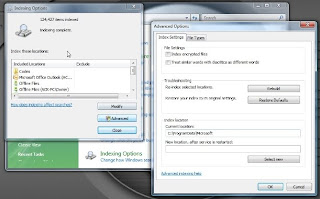
Open Control Panel > System & Maintenance > Indexing Options. In the Advanced Options, Click on Restore Defaults and also Rebuild Index. Click OK.
2/2 Next go to :
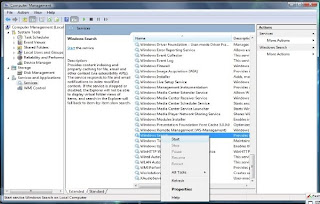
Control Panel\All Control Panel Items\Administrative Tools\Services
Scroll down until you find windows search service.
Right click and choose start
Hope this helps you.
Follow these steps to rebuild your index and start up the service.
1/2 Go to :
Open Control Panel > System & Maintenance > Indexing Options. In the Advanced Options, Click on Restore Defaults and also Rebuild Index. Click OK.

2/2 Next go to :
Control Panel\All Control Panel Items\Administrative Tools\Services
Scroll down until you find windows search service.
Right click and choose start

Hope this helps you.
Subscribe to:
Posts (Atom)